In this guide
If you have ever wanted to send your game audio to your headphones but not to your friends on Discord, record your voice and a caller on separate tracks, or share a video's sound in a Zoom meeting without your echo, you have bumped into the limits of the Windows sound system. Voicemeeter is the tool many people use to get past those limits.
This article explains what Voicemeeter is, how it works, who makes it and what you can do with it, without assuming any audio background.
Voicemeeter in one sentence
Voicemeeter is a virtual audio mixer for Windows: a mixing console application combined with virtual sound devices, so that you can mix sound from any microphone, hardware device or app and send it to any speaker, headphone or app.
It is made by VB-Audio Software, a French developer led by Vincent Burel. VB-Audio describes it as an audio mixer application endowed with virtual audio devices, used as virtual inputs and outputs to mix and manage any audio sources from or to any audio devices or applications.
The problem it solves
Windows treats audio in a simple way. Each app plays sound to one output device, and each app that records listens to one input device. You can pick a default for each, and Windows 10 and 11 let you set a per app output, but that is about it.
What Windows cannot do on its own is:
- Combine several sources into one, such as your microphone plus a music player, so that a call app hears both.
- Split one source to several places at different volumes.
- Process a microphone with tools such as a noise gate, compressor or EQ before every app receives it.
- Create separate mixes, for example one mix for your stream and a different one for your headphones.
A hardware mixing desk does all of that with cables and knobs. Voicemeeter does it in software.
How it works: two halves
Voicemeeter is really two things that work together.
1. The virtual audio devices
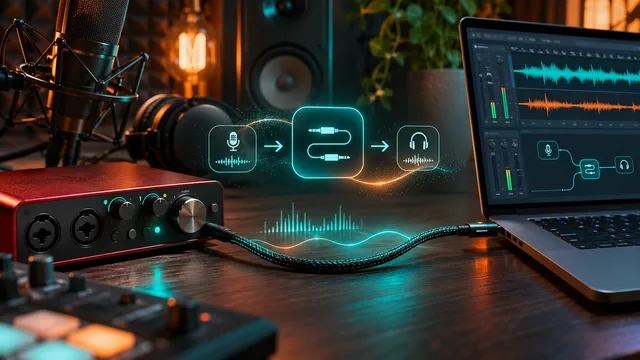
When you install Voicemeeter, it adds new sound devices to Windows. With Banana, for example, you get playback devices called Voicemeeter Input and Voicemeeter AUX Input, and recording devices for the B1 and B2 outputs. Windows and every app see them as ordinary sound cards.
- When an app plays sound into a Voicemeeter input device, that sound appears on a strip inside the mixer.
- When an app records from a Voicemeeter output device, it receives whatever mix you send to that bus.
2. The mixing console
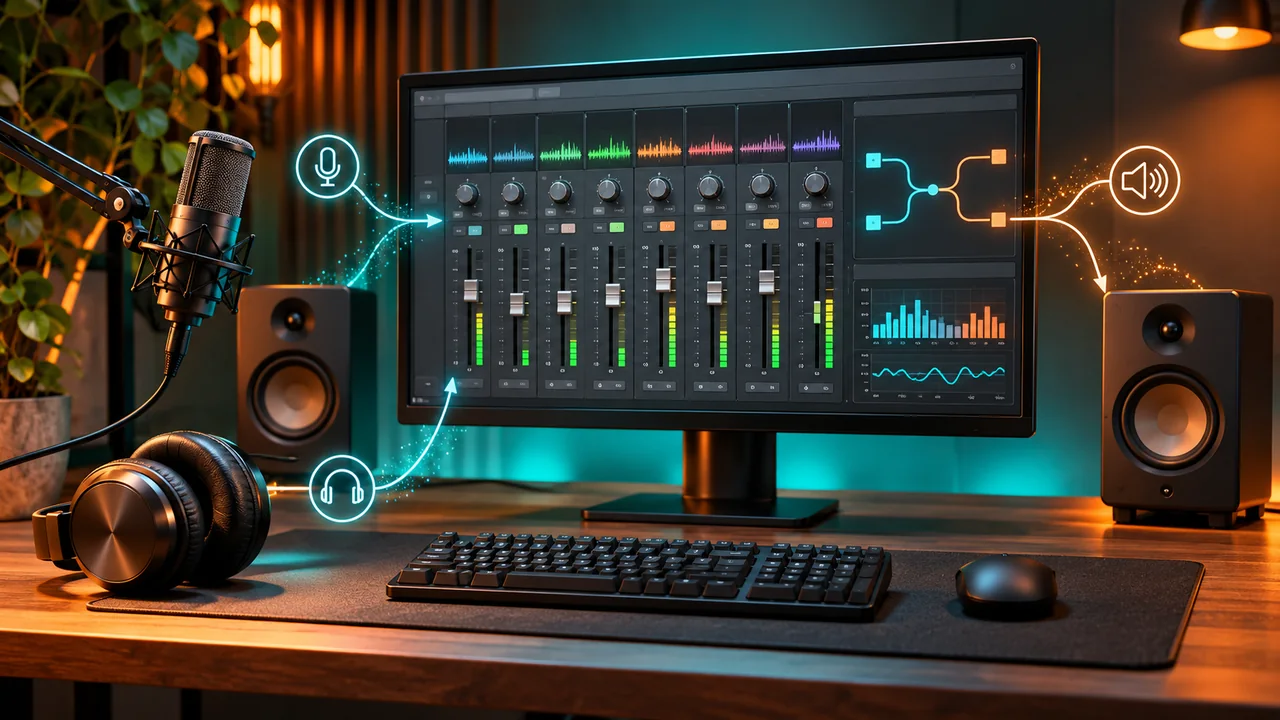
The Voicemeeter window looks like a simplified mixing desk:
- Input strips on the left and middle, one for each hardware device (such as your mic) and one for each virtual input. Each strip has a fader, mute, solo and processing controls.
- Bus buttons on each strip labelled A1, A2, B1 and so on. They decide where that strip's sound goes.
- Output buses on the right. A buses send to physical devices such as headphones; B buses become the virtual recording devices that apps can listen to.
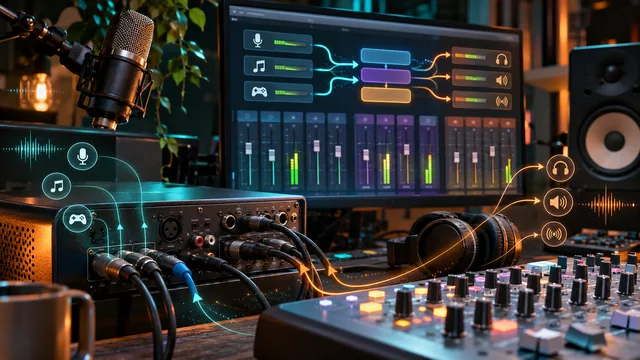
So the flow is: sources come in, you set levels and processing, you route each one to the buses you want, and the buses deliver the result to devices and apps. Our article on inputs, outputs and buses goes into this flow in detail.
A concrete example
Imagine you play games and chat on Discord.
- Your microphone is on hardware input 1. You turn on B1 so your voice goes to the first virtual output.
- Your game plays into Voicemeeter Input, which appears on the VOICEMEETER VAIO strip. You turn on A1 so you hear it in your headphones.
- In Discord, you set the input device to Voicemeeter Out B1 and the output to Voicemeeter AUX Input, so your friends' voices appear on the AUX strip with A1 on.
Result: you hear the game and your friends, your friends hear only your processed voice, and you can change the balance of game and chat with two faders. Our Discord setup guide walks through it step by step.
The three editions
Voicemeeter comes in three editions that share the same engine:
- Voicemeeter Standard: two hardware inputs, one virtual input, outputs A1, A2 and B1.
- Voicemeeter Banana: three hardware inputs, two virtual inputs, outputs A1 to A3 plus B1 and B2, a built in recorder and bus EQ.
- Voicemeeter Potato: five hardware inputs, three virtual inputs, outputs A1 to A5 plus B1 to B3, effects such as reverb and delay and advanced processing.
The current versions, released in September 2026, are 1.1.3.0, 2.1.3.0 and 3.1.3.0. Our edition comparison explains how to choose.
A short history
Voicemeeter's first release came in August 2013. Voicemeeter Banana arrived in January 2015, and Voicemeeter Potato, originally announced as Voicemeeter 8, launched in January 2019. Since then all three have been updated together, typically several times a year. Recent highlights include:
- 2022: advanced voice processing on Potato, including parametric EQ, compressor, gate, denoiser and a multiband compressor.
- 2024: remoting for up to eight client apps, Windows 11 24H2 support and ARM64 support, and a new denoiser algorithm.
- December 2025: a new VAIO driver version, surround speaker support and VBAN screen sharing.
- September 2026: the Windows Audio Map, new limiters and many smaller improvements.
You can read the full timeline in VB-Audio's version history on the forum (opens in a new tab) or our summary of the September 2026 update.
What Voicemeeter is used for
People use Voicemeeter for a surprisingly wide range of jobs:
- Streaming: sending separate mixes to OBS and to voice chat, and keeping alerts or music off one of them. See our OBS guide.
- Gaming with voice chat: balancing game sound against teammates.
- Online meetings: adding a gate and compressor to a cheap microphone, or sharing system audio in Zoom and Teams. See our meetings guide.
- Podcasts and interviews: recording a local mic and a remote guest at once with the built in recorder.
- Music and teaching: combining an instrument interface, a backing track and a microphone for a lesson.
- Accessibility: VB-Audio highlights a third party remote control app, NVDA Voicemeeter, built for visually impaired users.
- Networked audio: sending audio between PCs on a local network with VBAN. See our VBAN guide.
What Voicemeeter is not
A few common misunderstandings are worth clearing up:
- It is not a sound driver replacement. Your real sound card driver stays installed. Voicemeeter sits on top of it.
- It is not a DAW. It records, but it is not a multitrack editor for producing music.
- It is not cross platform. It runs only on Windows. There is no Mac, Linux, Android or iOS version. See Voicemeeter for Mac for alternatives.
- It is not a simple virtual cable. VB-Audio also makes VB-CABLE, which is a single virtual device with no mixer. Voicemeeter includes virtual devices plus the console to mix them.
Is it free?
Voicemeeter is donationware. You can download and use Standard and Banana for free, and VB-Audio asks you to pay a license, at a price you choose, if you find it useful or use it professionally. Potato is donationware with an activation code. Details are in Is Voicemeeter free?
What you need to run it
- A PC running Windows XP SP2 to Windows 11, in 32 bit, 64 bit or ARM64.
- Administrator rights to install the virtual audio drivers.
- At least one working audio output device, plus a microphone if you want to use your voice.
VB-Audio supports every major Windows audio driver model: MME, DirectX, KS, WDM and ASIO.
How to get started
- Read the safe download guide and download the Banana package from VB-Audio.
- Install it as administrator and restart Windows.
- Follow the Banana setup guide to set A1, add your microphone and point Windows at Voicemeeter.
- Pick a task guide for Discord, OBS or meetings and build from there.
Key terms at a glance
| Term | Meaning |
|---|---|
| Strip | One input channel with fader, mute and bus buttons |
| Bus | A mix of strips, sent to a device or app |
| A bus | Output to real hardware, such as headphones |
| B bus | Virtual output apps can record from |
| VAIO | Voicemeeter's virtual audio devices |
| VBAN | VB-Audio's network audio protocol |
Frequently asked questions
Is Voicemeeter a virus?
No. Voicemeeter is a commercial audio product from VB-Audio Software. Download it only from vb-audio.com or voicemeeter.com to avoid modified copies.
Does Voicemeeter improve sound quality?
It does not change your hardware, but its gate, compressor and EQ can make a microphone sound clearer.
Is Voicemeeter hard to learn?
The first setup takes some patience. Once you understand strips and buses, it becomes logical.
Does Voicemeeter work with any headset?
Any device Windows recognises as an audio device can be used.
Summary
Voicemeeter turns your Windows PC into a mixing desk. It adds virtual sound devices that any app can play into or record from, and a console where you set levels, add processing and route each sound to the outputs you choose. It comes in three sizes, Standard, Banana and Potato, runs only on Windows and is distributed as donationware by VB-Audio Software. Once the idea of inputs, strips and buses clicks, the rest of the program becomes much easier to understand.