In this guide
- The big picture
- Inputs in Banana
- Outputs in Banana
- Device name map for Banana
- A worked example
- The master section
- Physical vs virtual: why the difference matters
- How Standard and Potato differ
- The VAIO extension
- Insert and ASIO patching
- Seeing it all at once: the Windows Audio Map
- Common routing mistakes
- Drawing your own routing plan
- Frequently asked questions
- Summary
Almost every Voicemeeter question comes back to one idea: how sound moves from inputs, through strips, onto buses and out to devices and apps. Once that picture is clear, labels like A1, B2, VAIO and AUX stop being mysterious, and setup guides become easy to follow or adapt.
This article explains the model using Voicemeeter Banana, then shows how Standard and Potato differ.
The big picture
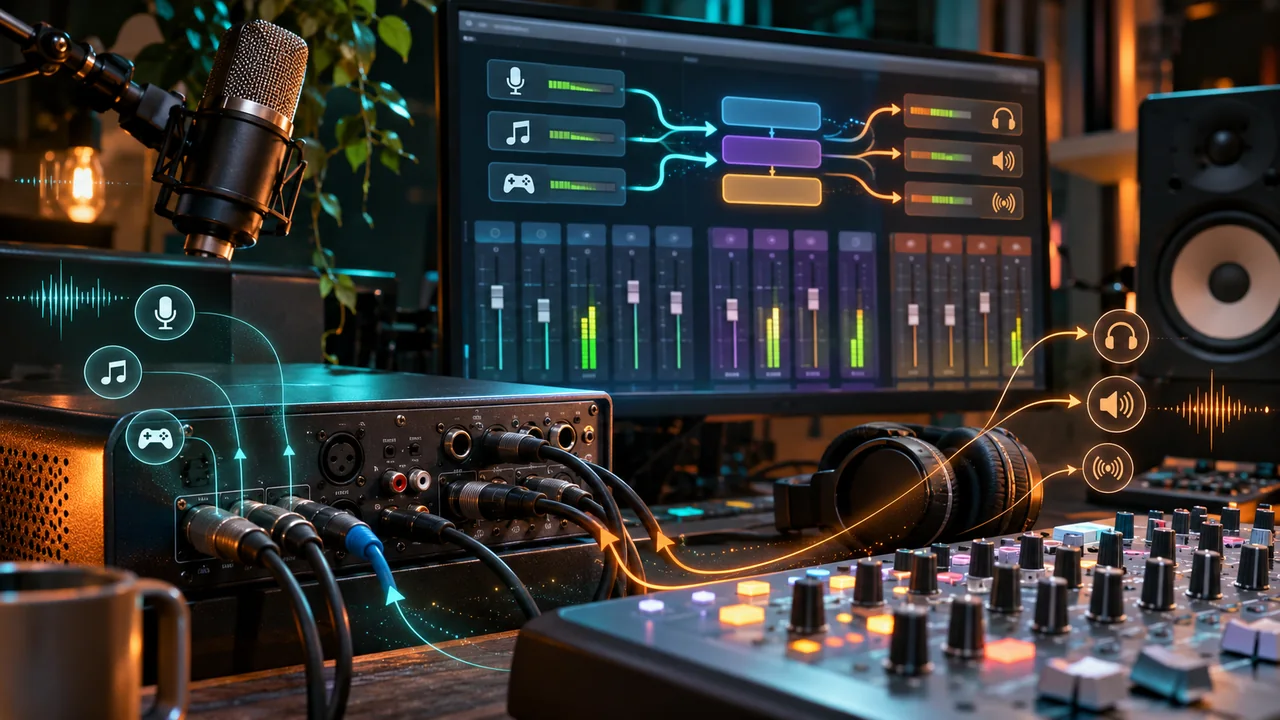
Think of Voicemeeter as a box with sources on the left and destinations on the right.
- Sources enter on input strips. Some strips take real hardware; others take sound from Windows apps through virtual devices.
- Each strip has bus buttons. A lit button sends that strip to that bus.
- Buses are mixes. Each bus adds up every strip that is sent to it.
- A buses deliver their mix to real hardware outputs, such as headphones and speakers.
- B buses deliver their mix to virtual outputs that apps can record from, as if they were microphones.
So "turn B1 on for the mic strip" simply means "add my microphone to the mix called B1".
Inputs in Banana
Hardware inputs (three strips)
The three strips on the left are for physical devices: USB microphones, the mic input on a headset, an audio interface, a capture card or a line input. You choose the device by clicking the strip's label.
Virtual inputs (two strips)
The two middle strips are fed by virtual devices Voicemeeter creates in Windows:
- VOICEMEETER VAIO strip, fed by the Windows playback device Voicemeeter Input.
- VOICEMEETER AUX strip, fed by the Windows playback device Voicemeeter AUX Input.
When an app plays sound to Voicemeeter Input, it appears on the VAIO strip. When an app plays to Voicemeeter AUX Input, it appears on the AUX strip. This is how you separate apps: send each group of apps to a different virtual input.
Outputs in Banana
A buses: A1, A2, A3
Each A bus is assigned to a physical output device in the hardware out area at the top right. A1 is the main output and should always be set, usually to your headphones. A2 and A3 are optional: speakers, a second headset, a hardware recorder.
Golden rule: A buses must point to real hardware, never to a Voicemeeter device.
B buses: B1, B2
B buses are virtual. Each appears in Windows as a recording device:
- B1 appears as Voicemeeter Out B1 (older builds: Voicemeeter Output).
- B2 appears as Voicemeeter Out B2 (older builds: Voicemeeter AUX Output).
Any app that records audio, such as Discord, Zoom or OBS, can select these as its microphone and will receive exactly the mix on that bus.
Device name map for Banana
| Windows device | Type | Connects to |
|---|---|---|
| Voicemeeter Input | Playback | VOICEMEETER VAIO input strip |
| Voicemeeter AUX Input | Playback | VOICEMEETER AUX input strip |
| Voicemeeter Out B1 | Recording | Bus B1 |
| Voicemeeter Out B2 | Recording | Bus B2 |
Remember the direction: apps play into inputs and record from outputs. If an app's speaker setting shows a Voicemeeter Out device, or its microphone setting shows a Voicemeeter Input device, something is backwards.
A worked example
Goal: you hear everything, Discord hears only your voice, and OBS hears everything.
- Mic on hardware input 1, bus buttons: B1 on, B2 on, A1 off.
- Games and browser play to Voicemeeter Input. VAIO strip: A1 on, B2 on, B1 off.
- Discord plays to Voicemeeter AUX Input. AUX strip: A1 on, B2 on, B1 off.
- Discord records from Voicemeeter Out B1.
- OBS records from Voicemeeter Out B2.
Result:
- A1 (your headphones) = game, browser, Discord.
- B1 (Discord's mic) = your voice.
- B2 (OBS) = your voice, game, browser, Discord.
Our OBS and Discord guides build exactly this.
The master section
On the right side of Voicemeeter, each bus has its own controls:
- Fader: bus output level. Keep B buses near 0 dB and balance on the strips.
- Mute: silences the whole bus.
- EQ (Banana and Potato): parametric EQ for that bus. The September 2026 release added eight small LEDs on the EQ button indicating per channel whether EQ or delay is active.
- Mono and mode: each bus has a mode that controls how channels are handled, such as normal, mono, mix down and up mix options. The September 2026 release added Left Only and Right Only modes, and a right click on the Mono button jumps to a mode directly.
- Limiter: since September 2026, buses have their own limiter, set by dragging on the peak meter.
Physical vs virtual: why the difference matters
A buses talk to real sound cards, so they depend on driver type (WDM, KS, MME, ASIO), buffer size and the device's sample rate. This is where crackling usually starts; see the crackling fix guide.
B buses and virtual inputs are Voicemeeter's own VAIO devices (Virtual Audio Input Output). They are synchronised with Voicemeeter's engine. The December 2025 release re engineered VAIO clocking for strict synchronisation with the main stream, with a VAIO sync option in system settings.
How Standard and Potato differ
Standard
- Two hardware input strips, one virtual input (Voicemeeter Input, VAIO strip).
- Buses A1, A2 and B1.
- There is no AUX input or B2, so every app shares one virtual strip and every recording app gets the same mix.
Potato
- Five hardware input strips and three virtual inputs: VAIO, AUX and a third often labelled VAIO3.
- Buses A1 to A5 and B1 to B3.
- Windows shows a third playback device for VAIO3 and a third recording device for B3.
See the full edition comparison.
The VAIO extension
VB-Audio sells an optional VAIOs extension for Standard and Banana. It allows virtual audio I/O on hardware inputs and physical buses. In other words, a hardware input strip or an A bus can also act as an extra virtual device. On Banana that can replace up to six virtual audio cables (three hardware inputs and three physical buses); on Standard, three. It requires Windows 10 x64 or newer and is licensed separately with an activation code. Most users never need it, but it is the answer when you run out of virtual paths and Potato is not an option. See Is Voicemeeter free? for licensing.
Insert and ASIO patching
Advanced users can insert external processing, such as a DAW or VST host, into Voicemeeter's strips through its virtual ASIO insert driver. VB-Audio's forum describes how programmers can use Voicemeeter's virtual I/O and the ASIO insert driver to process signal inside Banana on all input strips. Potato's 2022 update added a patch insert dialog box in system settings. This is beyond what most setups need, but it is how Voicemeeter connects to plugin chains.
Seeing it all at once: the Windows Audio Map
The September 2026 release added the Windows Audio Map, opened from the icon next to the VBAN button. It shows Windows audio devices and endpoints with their formats, modes, states and routing toward Voicemeeter, including links to VAIO, AUX and physical inputs and outputs. If you are ever confused about which app is using which device, it is the fastest way to see the whole picture. More in our update overview.
Common routing mistakes
| Mistake | Result | Fix |
|---|---|---|
| A1 set to a Voicemeeter device | Loop, feedback or silence | Set A1 to real hardware |
| Call app on AUX with B1 on | Callers hear themselves | Turn B1 off on AUX |
| Mic with A1 on | You hear yourself | Turn A1 off on mic |
| App mic set to Voicemeeter Input | App hears nothing | Use a Voicemeeter Out device |
| App speaker set to Voicemeeter Out B1 | Error or silence | Use Voicemeeter Input or AUX Input |
Drawing your own routing plan
Before changing anything in Voicemeeter, write your plan as a small table with strips down the side and buses across the top. Put a tick wherever a strip should feed a bus. For every bus, add a note saying what device or app receives it. Then read each row and column aloud: "My mic goes to B1 and B2. B1 feeds Discord. B2 feeds OBS." Mistakes such as a call app feeding its own input become obvious on paper.
Once the plan is right, copy it into Voicemeeter strip by strip, then save your settings so the plan and the configuration match.
The official Voicemeeter Banana user manual (opens in a new tab) and Voicemeeter Potato user manual (opens in a new tab) include VB-Audio's own diagrams of every strip and bus.
Frequently asked questions
What does A1 mean in Voicemeeter?
A1 is the first hardware output bus, normally your headphones or speakers. It must be set for you to hear anything.
What is the difference between Voicemeeter Input and Voicemeeter Out B1?
Voicemeeter Input is a playback device apps send sound into. Voicemeeter Out B1 is a recording device apps listen to.
What does VAIO stand for?
Virtual Audio Input Output, VB-Audio's name for Voicemeeter's virtual devices.
Can one strip go to several buses?
Yes. Light as many bus buttons as you need.
Summary
Voicemeeter routing is simple once you see it as strips feeding buses. Hardware strips take physical devices; virtual strips take apps that play into Voicemeeter Input or AUX Input. A buses send mixes to real hardware, and B buses become the Voicemeeter Out recording devices apps listen to. Light the bus buttons on each strip to build each mix, keep A1 on real hardware and keep call apps off the bus they record from. With that model, any setup, from a simple Discord chain to a Potato broadcast console, is just a matter of deciding which strips belong in which mix.