In this guide
- The goal
- Step 1: Separate your sources into strips
- Step 2: Route each strip
- Step 3: Set up OBS
- Step 4: Balance the mix
- Step 5: Monitoring without confusion
- Multitrack recording for editing (optional)
- Sample rate and stability
- Using the recorder as a backup
- Scene changes with Macro Buttons
- Troubleshooting checklist
- Alternative: OBS application audio capture
- A pre stream checklist
- Frequently asked questions
- Summary
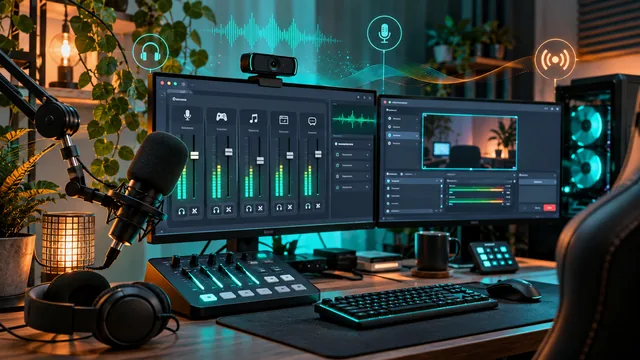
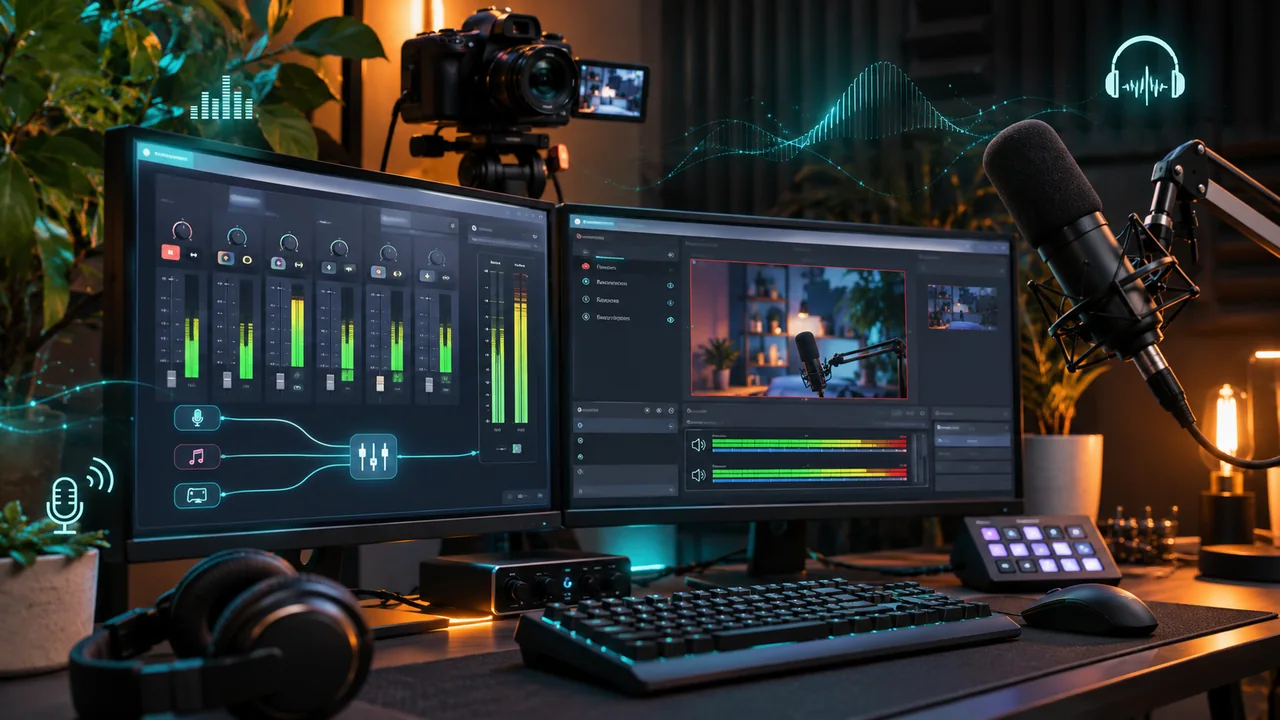
Streaming audio has a habit of going wrong in front of an audience. Viewers hear the game twice, Discord friends hear your music, your mic is too quiet next to the game, or OBS picks up sounds you did not want on stream. Voicemeeter fixes this by letting you build the exact mix OBS receives, separately from what you hear and what your voice chat receives.
This guide uses Voicemeeter Banana and OBS Studio. It assumes you have finished the Banana setup guide, so A1 is your headphones and your microphone is on hardware input 1.
The goal
We want three separate mixes:
- What you hear (A1): game, music, Discord and alerts, but not your own voice.
- What Discord hears (B1): only your microphone.
- What the stream hears (B2): your microphone, game, music and Discord, at levels you control.
Banana has exactly enough virtual inputs and outputs for this, which is one reason it is the most popular edition for streamers.
Step 1: Separate your sources into strips
Microphone on hardware input 1
Already done if you followed the setup guide. Add a gate and some compression so your voice sits well over the game (see our mic processing guide).
Games and music on VOICEMEETER VAIO
Windows' default playback device is Voicemeeter Input, so games, browsers and media players already land on the VAIO strip.
Discord on VOICEMEETER AUX
In Discord, open User Settings, Voice and Video and set Output Device to Voicemeeter AUX Input. Your friends' voices now appear on the AUX strip, so you can control them separately.
Step 2: Route each strip
| Strip | A1 (you hear) | B1 (Discord hears) | B2 (stream) |
|---|---|---|---|
| Hardware 1: Mic | Off | On | On |
| VOICEMEETER VAIO: Game and music | On | Off | On |
| VOICEMEETER AUX: Discord | On | Off | On |
Then in Discord, set Input Device to Voicemeeter Out B1. Discord now receives only your voice.
If you prefer not to put Discord on stream (some communities ask for this), simply turn B2 off on the AUX strip. Viewers will hear you but not your friends.
Step 3: Set up OBS
The key rule: OBS should capture only Voicemeeter Out B2. Everything else in OBS that captures audio should be disabled, otherwise sounds arrive twice.
- In OBS, open Settings, Audio.
- Under Global Audio Devices, set Desktop Audio to Disabled, and set every Mic/Auxiliary Audio entry to Disabled.
- Click OK.
- In your scene's Sources panel, click +, choose Audio Input Capture, name it "Voicemeeter Stream Mix" and select Voicemeeter Out B2 as the device.
Why use an Audio Input Capture source rather than the Mic/Auxiliary global setting? Either works, but a source makes the routing visible in the scene and easy to copy between scenes. If you want the mix in every scene, add it to one scene and use Add Existing in the others, or put it in a nested scene.
Watch for hidden duplicates
These OBS features can capture audio and cause doubling:
- Window Capture or Game Capture with the "Capture Audio" option enabled.
- Browser Sources with "Control audio via OBS" enabled, such as alert widgets.
- Media Sources playing videos or sounds.
- Application Audio Capture sources.
If you want alerts on stream through Voicemeeter, leave browser sources playing to the default device (Voicemeeter Input) and make sure OBS is not also capturing them. If you prefer to control alerts in OBS, keep them in OBS and make sure the browser is not also sending them to Voicemeeter. Pick one path for each sound.
Step 4: Balance the mix
Now play a game and talk:
- Watch the B2 meter in Voicemeeter and the "Voicemeeter Stream Mix" meter in OBS. They should move together.
- Use the strip faders in Voicemeeter to balance voice, game and Discord. A common starting point is to have the game noticeably quieter than your voice.
- Keep the OBS source volume at 0 dB and do the balancing in Voicemeeter. One control point per job keeps things predictable.
- Record a short local test in OBS and listen back. Your headphones mix (A1) is not what viewers hear.
Step 5: Monitoring without confusion
Because your mic is not on A1, you do not hear yourself. If you want to check exactly what the stream hears, you have two options:
- Use OBS's Audio Monitoring on the Voicemeeter source, set to monitor a device that is not part of your Voicemeeter chain. This is easy to loop accidentally, so use it carefully.
- Briefly turn A1 on for the mic strip to hear yourself, then turn it off again.
The safest habit is a short recorded test before going live.
Multitrack recording for editing (optional)
OBS can record several audio tracks into one file, which is valuable if you edit videos later. Banana gives you two virtual outputs; one is busy with Discord. A practical compromise:
- Track 1: Voicemeeter Out B2 (full stream mix)
- Track 2: Voicemeeter Out B1 (your voice only, the same as Discord receives)
Add a second Audio Input Capture source for Voicemeeter Out B1, then in OBS Edit, Advanced Audio Properties, assign the B2 source to track 1 only and the B1 source to track 2 only. In Settings, Output, Recording, enable tracks 1 and 2. Your stream still uses only track 1, but your recording contains a clean voice track for edits.
With Potato, you have a third virtual output (B3), so you can create a dedicated "voice only for editing" or "game only" track without sharing B1 with Discord. See our Potato guide for a full streamer layout.
Sample rate and stability
OBS defaults to a 48 kHz sample rate, which matches what we recommend for Voicemeeter. Check OBS Settings, Audio, Sample Rate and Voicemeeter's Menu, System Settings / Options, and make sure your devices in Windows are also set to 48000 Hz. Mismatched rates can cause drift, where audio slowly falls out of sync with video during long streams.
If you hear crackles on stream but not in your headphones, or the other way round, our crackling fix guide covers buffer settings and driver choices.
Using the recorder as a backup
Banana's built in recorder can capture any bus to a file separately from OBS. Recording B2 with it during important streams gives you a backup audio track if OBS has an issue. Save the file to a different drive than OBS's recording if you can.
Scene changes with Macro Buttons
Want a "Be Right Back" scene that mutes your mic on stream but keeps you talking to Discord? Voicemeeter's Macro Buttons app can toggle bus assignments, such as turning off B2 on the mic strip, with a single key or a MIDI controller. Since Macro Buttons supports keyboard shortcuts, it pairs well with OBS hotkeys or a stream deck.
Troubleshooting checklist
| Problem | Fix |
|---|---|
| Viewers hear game twice | OBS Desktop Audio or a capture source with audio is still enabled |
| Discord friends hear your music | B1 is on for the VAIO strip; turn it off |
| Viewers do not hear Discord | B2 is off on the AUX strip, or Discord output is not set to Voicemeeter AUX Input |
| Voice too quiet against game | Lower the VAIO strip fader rather than raising the mic into the red |
| Echo of your voice on stream | Mic routed to A1 and OBS monitoring of the same audio; turn one off |
| Audio drifts out of sync over hours | Sample rate mismatch; set 48 kHz everywhere |
Alternative: OBS application audio capture
Recent versions of OBS Studio on Windows include Application Audio Capture, which records sound from one specific app. Some streamers combine it with Voicemeeter, for example using Voicemeeter for microphone processing (B1 or B2 into OBS) while capturing a game directly in OBS. That gives OBS mixer control per source but moves balancing back into OBS.
There is no single right approach. Two rules keep either method clean:
- Every sound should reach OBS by exactly one path. If a game is captured by Application Audio Capture, it must not also be on the bus OBS records.
- Decide where you balance. Either balance in Voicemeeter and leave OBS faders at 0 dB, or balance in OBS and keep Voicemeeter simple. Mixing both leads to confusion.
A pre stream checklist
- Voicemeeter running, version current, settings saved.
- Mic meter moving, gate and compressor on.
- Discord input set to Voicemeeter Out B1.
- OBS Desktop Audio and global mic inputs disabled; single Voicemeeter Out B2 source present.
- No game or browser sources capturing audio twice.
- Ten second local recording played back and checked.
For the OBS side of this setup, the official OBS audio mixer guide (opens in a new tab) explains sources, monitoring and the mixer in detail.
Frequently asked questions
Should OBS use Desktop Audio with Voicemeeter?
Usually not. Disable Desktop Audio and capture a Voicemeeter Out bus instead, otherwise sound often arrives twice.
Why is my stream audio delayed compared to video?
Check sample rates (48 kHz everywhere) and buffer sizes. OBS also lets you set a sync offset on each audio source if a small constant delay remains.
Can I stream with Voicemeeter Standard?
Yes, but with only B1 you cannot give Discord and OBS different mixes. Banana is the usual choice for streaming.
Do alerts need to go through Voicemeeter?
No. Route them either through Voicemeeter or through OBS, but not both.
Summary
Put your mic on hardware input 1, games and music on Voicemeeter Input, and Discord on Voicemeeter AUX Input. Send your mic to B1 for Discord, and everything you want viewers to hear to B2. In OBS, disable Desktop Audio and all global mic inputs, then add a single Audio Input Capture source for Voicemeeter Out B2 and watch for hidden audio in other sources. Balance in Voicemeeter, test with a short recording, and use a second track or Potato's extra bus if you edit afterwards.