In this guide
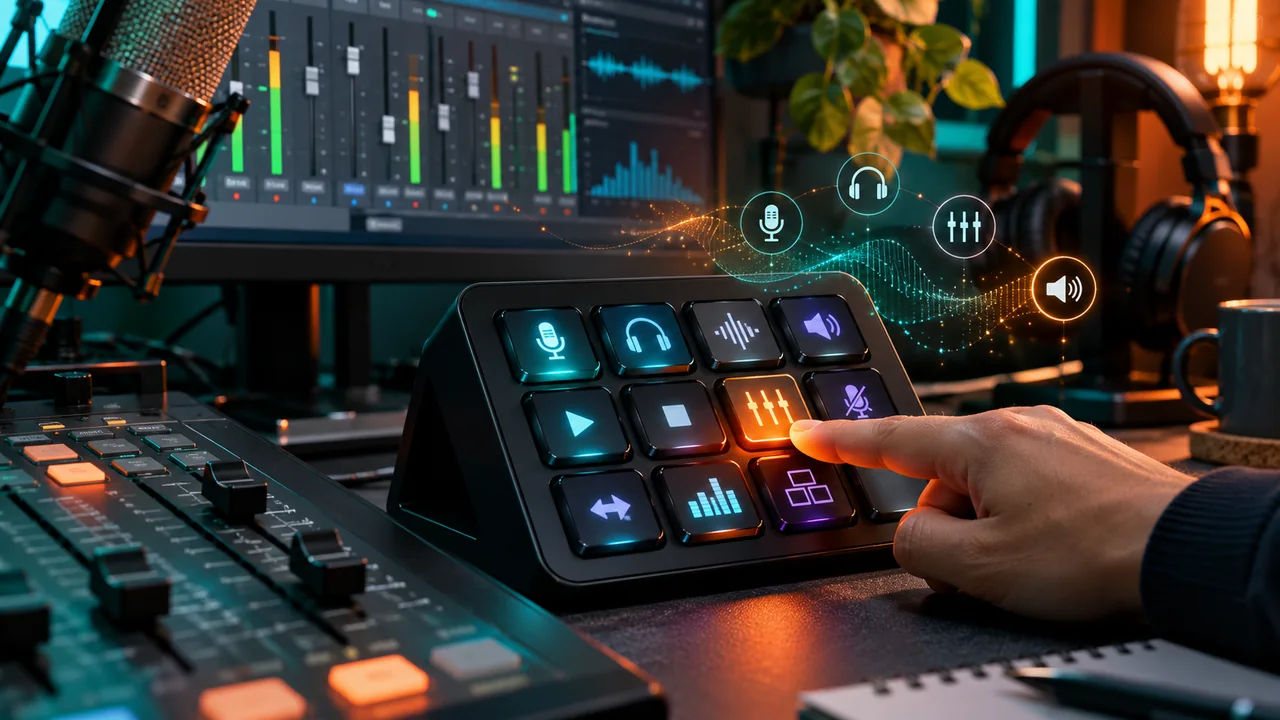
Clicking tiny bus buttons in the middle of a game or a live stream is not practical. Voicemeeter Macro Buttons solves that. It is a companion app, installed with Voicemeeter, that gives you a grid of programmable buttons. Each button can run a short script, such as muting your microphone, moving a strip to another bus or loading a different configuration, and can be triggered by a click, a keyboard shortcut, a MIDI controller or even an audio level.
This guide explains how Macro Buttons works, the basics of its script language and a set of practical buttons you can build in minutes.
Opening Macro Buttons
Macro Buttons installs with the Voicemeeter package. Open it from the Start menu (search for Macro Buttons) or from the Voicemeeter Menu. A window opens with a grid of empty buttons. The grid size is configurable, and the app supports up to 80 buttons, numbered 0 to 79.
Macro Buttons talks to Voicemeeter through the Remote API, so Voicemeeter must be running for the buttons to act on it.
Configuring a button
Right click a button to open its configuration dialog. The main settings are:
- Name: the label shown on the button.
- Button type: a push button runs its action each time you press it; a two position button (toggle) has an on state and an off state, each with its own script.
- Request for button ON and Request for button OFF: the scripts that run when the button turns on or off.
- Initial request: a script that runs when Macro Buttons starts.
- Keyboard shortcut: a key or key combination that presses the button.
- MIDI mapping: a MIDI note or control change that presses the button.
- Colour and image: visual styling. Since the December 2025 release, a button can display an image for its off state and another for its on state.
Click OK to save. The September 2026 release added a lock option to stop right click editing, which is useful once your layout is finished, and a "Show Script LED" indicator.
The script language in one minute
Scripts are short lines that set Voicemeeter parameters. The syntax is simple: a parameter name, an equals sign, a value and a semicolon.
Strip[0].Mute = 1;- Strip[0] is the first input strip (hardware input 1). Strips are numbered from 0 left to right: on Banana, Strip[0] to Strip[2] are hardware inputs and Strip[3] and Strip[4] are the VAIO and AUX virtual inputs.
- Bus[0] is the first output bus (A1). On Banana, Bus[0] to Bus[2] are A1 to A3, and Bus[3] and Bus[4] are B1 and B2.
- Mute = 1 mutes; Mute = 0 unmutes.
Some common parameters:
| Parameter | Meaning | Example |
|---|---|---|
| Strip[i].Mute | Mute an input strip | Strip[0].Mute = 1; |
| Strip[i].A1 | Route a strip to bus A1 | Strip[3].A1 = 0; |
| Strip[i].B1 | Route a strip to bus B1 | Strip[0].B1 = 1; |
| Strip[i].Gain | Set strip gain in dB | Strip[3].Gain = -12; |
| Bus[i].Mute | Mute an output bus | Bus[4].Mute = 1; |
| Bus[i].Gain | Set bus gain in dB | Bus[0].Gain = -6; |
You can put several instructions on one button, one per line. VB-Audio's Remote API documentation and the Voicemeeter user manuals list every parameter; the SDK on GitHub (opens in a new tab) includes the documentation.
Practical buttons to build
1. Microphone mute (toggle)
- Type: two position
- ON request:
Strip[0].Mute = 1; - OFF request:
Strip[0].Mute = 0; - Shortcut: a key you rarely use, such as a function key
This mutes your mic for every app at once, Discord, OBS and Zoom, which is more reliable than muting in each app.
2. "Discord only" mic for private chat on stream
Your mic normally goes to B1 (Discord) and B2 (stream). To talk to friends without viewers hearing:
- ON request:
Strip[0].B2 = 0; - OFF request:
Strip[0].B2 = 1;
3. Switch headphones and speakers
If A1 is headphones and A2 is speakers, this toggle moves your PC sound strip:
- ON request:
Strip[3].A1 = 0;andStrip[3].A2 = 1; - OFF request:
Strip[3].A1 = 1;andStrip[3].A2 = 0;
4. Duck music during a call (push)
Lower the music strip quickly:
- Request:
Strip[3].Gain = -15;
Pair it with another push button that restores Strip[3].Gain = 0;.
5. Load a different configuration
Voicemeeter can load a settings file by command, which lets one button switch between, for example, a "gaming" and a "meeting" setup. Use the load command documented in VB-Audio's Remote API reference, with the path to your saved XML file.
Triggers beyond clicking
Keyboard shortcuts
Assign a key or combination in the button dialog. Shortcuts work globally, even when Voicemeeter is not in focus, which is what makes Macro Buttons useful during games. The PUSH key repeat option introduced in September 2026 controls whether holding a key repeats the action.
MIDI controllers
Macro Buttons can listen to MIDI notes and control changes. Map a pad or a key on a MIDI controller to a button. Since the September 2026 release, Macro Buttons offers two MIDI input devices in its system menu, so it can receive MIDI from devices Voicemeeter itself is not using, or work with a MIDI controller without involving Voicemeeter's MIDI mapping at all.
Audio triggers
A button can be triggered by audio level. For example, it can light up or act when a strip's level crosses a threshold. The December 2025 release added an input mode selector (Pre Fader, Post Fader or Post Mute) and the ability to use an output bus level as the trigger source. A common use is an automatic "on air" indicator that lights when your mic is active.
Tape recorder events
Since December 2025, button states can be triggered by the recorder's Play, Stop, Record and End of File events. For example, a button can automatically mute your music strip while a jingle plays.
Visual polish
- Images: each button can show one image when off and another when on. VB-Audio's notes give a native size of 130 by 108 pixels; larger images are scaled down and smaller ones centred. Accepted formats are BMP, PNG, JPG and TIF. Transparency works best with PNG images smaller than the native size.
- Colours can be chosen by name.
- Labels should be short; you want to read them at a glance during a stream.
Macro Buttons and VBAN
Macro Buttons can send commands over the network using VBAN-TEXT, so a button on one PC can control Voicemeeter on another. The December 2025 update raised the number of VBAN-TEXT streams in Macro Buttons from two to four. This is ideal for a two PC stream: a button on your gaming PC can mute your mic on the streaming PC. See our VBAN guide.
Tips for a reliable layout
- Start small. Build three or four buttons you will actually use, then expand.
- Use toggles for states, push buttons for actions. Mute is a state; "lower music by 15 dB" is an action.
- Use an initial request to put Voicemeeter into a known state when Macro Buttons starts, such as mic unmuted and routed to B1 and B2.
- Keep shortcuts unique. A shortcut that clashes with a game binding will fire both.
- Lock your layout with the September 2026 lock option so a stray right click does not open the editor live on stream.
- Save the Macro Buttons configuration along with your Voicemeeter settings before updates.
Troubleshooting
| Problem | Fix |
|---|---|
| Buttons do nothing | Voicemeeter must be running; restart Macro Buttons after Voicemeeter |
| Wrong strip changes | Remember strips and buses are numbered from 0 |
| Shortcut does not work in a game | Some games running as administrator block input from normal apps; run both consistently |
| MIDI not detected | Select the device in Macro Buttons' MIDI input options and check no other app holds it |
| System timer oddities | Update: September 2026 fixed an issue where Macro Buttons set the system timer resolution incorrectly |
New to Voicemeeter's routing? Read inputs, outputs and buses explained first, and get the latest Banana or Potato from our download page so every Macro Buttons feature in this guide is available.
Frequently asked questions
Is Macro Buttons included with Voicemeeter?
Yes. It installs with the Voicemeeter package.
How many macro buttons can I have?
Up to 80, numbered 0 to 79.
Can Macro Buttons work when Voicemeeter is minimised?
Yes. Keyboard shortcuts work globally while Voicemeeter and Macro Buttons are running.
Can I use a Stream Deck instead?
Yes. Community plugins for Stream Deck use the Voicemeeter Remote API. Macro Buttons remains useful for keyboard and MIDI triggers.
Where are commands documented?
In the Voicemeeter user manuals and the Remote API documentation in VB-Audio's SDK.
Summary
Voicemeeter Macro Buttons is a companion app with up to 80 programmable buttons that send script commands to Voicemeeter. Configure each button by right clicking it: choose push or two position mode, write short scripts such as Strip[0].Mute = 1;, and assign a keyboard shortcut, MIDI control, audio trigger or recorder event. Recent releases added button images, two MIDI inputs, more VBAN-TEXT streams and a lock option. A mic mute toggle, a stream only mute and an output switcher are the three buttons almost everyone ends up using.