In this guide
- What VBAN is
- Typical uses
- Before you start
- Opening the VBAN window
- Example: send game audio from PC A to PC B
- Choosing settings
- Sending your PC microphone to another device
- Remote control with VBAN-TEXT
- VBAN screen sharing
- Security considerations
- Troubleshooting VBAN
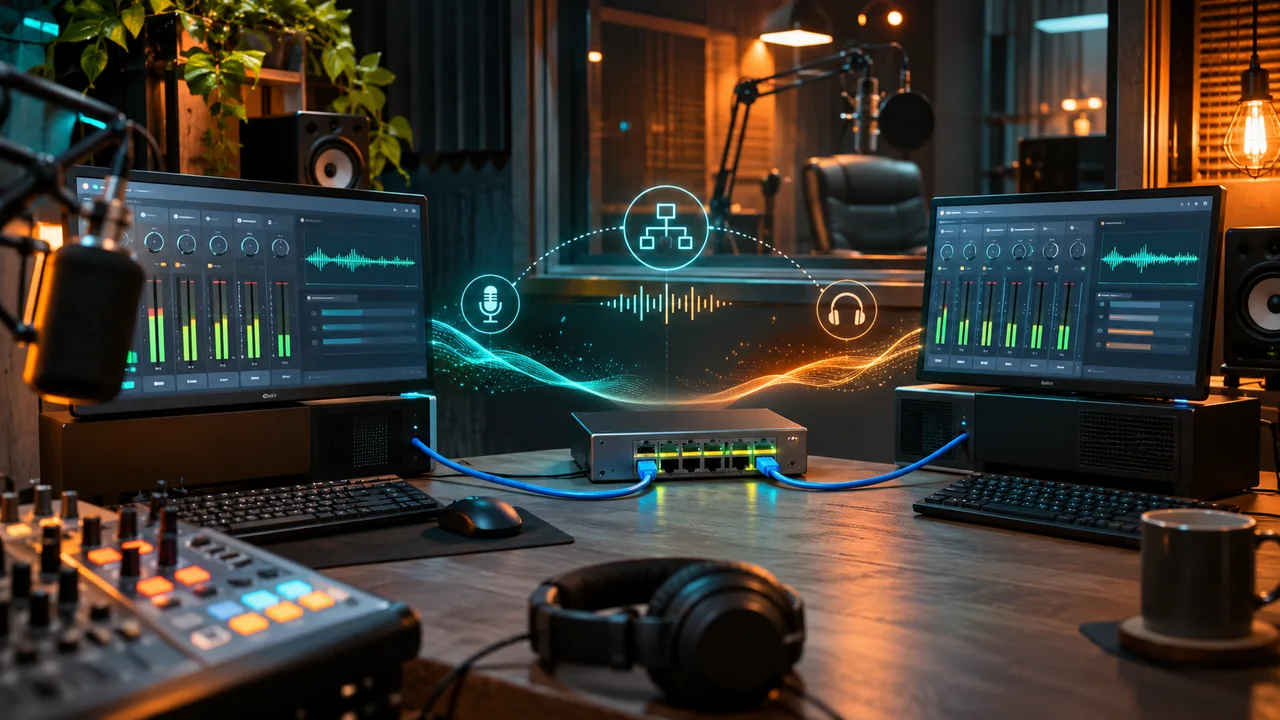
- Planning a two PC stream with VBAN
- Frequently asked questions
- Summary
VBAN is one of Voicemeeter's most powerful and least understood features. It lets you send audio, and also MIDI, text commands and even screen images, from one computer to another over your local network, with no cables between the machines. It is how many streamers build a two PC setup, how podcasters bring a second computer into a mix, and how people send a PC's microphone to another device in the house.
This guide explains what VBAN is, how to set up incoming and outgoing streams in Voicemeeter, and how to keep network audio reliable.
What VBAN is
VBAN is a network protocol created by VB-Audio for real time audio over IP networks. It is built into all Voicemeeter editions and is publicly documented, which is why open source VBAN tools exist for other systems such as Linux.
Over time VB-Audio has extended VBAN beyond audio:
- Audio streams: the main use, carrying mono, stereo or multi channel audio.
- Serial and MIDI data: a sub protocol for carrying MIDI and serial messages, added in 2017 along with remote functions.
- Text commands: VBAN-TEXT lets one machine send Voicemeeter commands to another, useful for remote control.
- Frames (images): the December 2025 release introduced VBAN-FRAME, which sends screen or window captures as JPG or PNG to the separate VBAN-Screen app for screen sharing over a local network.
Voicemeeter's VBAN service can run even when the audio engine is stopped, a change in the December 2025 release.
Typical uses
- Two PC streaming: send game audio from a gaming PC to a streaming PC running OBS, without a capture card for audio.
- Remote microphone: send a mic from one computer to Voicemeeter on another.
- Whole house audio: send music from a desktop to another PC connected to speakers.
- Remote control: use VBAN-TEXT to change Voicemeeter settings on one PC from another, or from Macro Buttons.
- Mixed systems: exchange audio with Linux machines using the open source VBAN tools listed on VB-Audio's support page.
Before you start
- Both computers must be on the same local network. Wired Ethernet is strongly recommended for audio; Wi-Fi works but adds jitter and occasional dropouts.
- Note each computer's local IP address. On Windows, open Command Prompt and run
ipconfig, then look for the IPv4 address of your active network adapter. - Make sure Windows Firewall allows Voicemeeter on private networks. Windows usually asks the first time you enable VBAN; choose Private networks.
- Set both computers' networks to Private in Windows network settings, not Public.
Opening the VBAN window
In Voicemeeter, click the VBAN button near the top of the window. The VBAN dialog has two lists:
- Incoming streams: audio Voicemeeter will receive and place on an input strip.
- Outgoing streams: audio Voicemeeter will send from a bus or input to another computer.
There is a master switch to turn VBAN on. Each stream also has its own on and off switch.
Example: send game audio from PC A to PC B
Imagine PC A is your gaming PC and PC B is your streaming PC. Both run Voicemeeter Banana.
On PC A (sender)
- Route the audio you want to send to a bus. For example, put game sound on B2 by turning B2 on for the VOICEMEETER VAIO strip.
- Open VBAN. In the Outgoing streams section, pick an empty slot.
- Set the source to the bus you want to send (for example B2).
- Give the stream a name, such as
GameAudio. Names are case sensitive. - Enter PC B's IP address as the destination.
- Choose a sample rate (48 kHz is a good default) and number of channels (2 for stereo).
- Choose the format and quality options. Higher quality uses more bandwidth; on a wired local network, uncompressed PCM is normally fine.
- Turn the stream on and make sure the master VBAN switch is on.
On PC B (receiver)
- Open VBAN. In Incoming streams, pick an empty slot.
- Enter the same stream name,
GameAudio. - Enter PC A's IP address as the source.
- Choose which input strip the stream should appear on. Voicemeeter's network inputs are assigned to strips in the VBAN window.
- Turn the stream on.
When it works, PC B's VBAN window shows the stream as active and the chosen strip's meter moves. You can then route it like any other input, for example to B2 for OBS. See our OBS guide.
Choosing settings
Port
VBAN uses UDP, and Voicemeeter's default port is 6980. Keep the default unless you have a reason to change it, and if you do, change it on both ends.
Network quality and latency
Voicemeeter offers a network quality setting that trades latency for robustness. Faster settings use smaller packets and lower latency but are more sensitive to network hiccups. If you hear dropouts, choose a safer, higher latency setting.
Sample rate and channels
Match the sample rate to the rest of your setup, typically 48 kHz. Send only the channels you need: stereo for most audio, mono for a single microphone.
Sending your PC microphone to another device
VB-Audio's voicemeeter.com publishes a guide on sharing a PC microphone to a Mac. The general idea applies to any VBAN capable receiver: route your mic strip to a bus, create an outgoing stream from that bus to the other device's IP, and run a VBAN receiver on the other device. On Linux, VB-Audio's support page lists open source VBAN receptor and emitter projects.
Remote control with VBAN-TEXT
VBAN can carry text commands, which lets one machine change settings on another. For example, a Macro Button on PC A can send a command to mute a strip on PC B. The December 2025 release expanded Macro Buttons to support four VBAN-TEXT streams instead of two, and the September 2026 release fixed several VBAN text command handling issues. Commands use the same syntax as Voicemeeter scripts, such as Strip[0].Mute = 1;. See our Macro Buttons guide.
VBAN screen sharing
With the December 2025 update, Voicemeeter can capture a screen or its own window and send it over the network as a VBAN-FRAME stream to the VBAN-Screen application, which is a separate Windows app with its own download on VB-Audio's VBAN page. Frame rate (1 to 30 frames per second), format (PNG or JPG), JPG quality and mouse cursor capture can be set through the Remote API. This is designed for screen mirroring on local networks.
Security considerations
VBAN is designed for trusted local networks. It does not encrypt audio. Keep these practices in mind:
- Use VBAN only on networks you control.
- Do not forward VBAN's UDP port through your router to the internet.
- Mark your network as Private in Windows and allow Voicemeeter only on private networks.
- Turn off incoming streams you do not use.
Troubleshooting VBAN
| Problem | Fix |
|---|---|
| Stream never shows as active | Check IP addresses, matching stream names and that VBAN master switch is on at both ends |
| Works one way only | Firewall is blocking on the receiving PC; allow Voicemeeter on private networks |
| Dropouts or crackles | Use wired Ethernet, choose a safer network quality setting, reduce channels |
| Wrong pitch or speed | Sample rate mismatch between sender and receiver |
| Stops after router restart | IP address changed; set a DHCP reservation for each PC in your router |
| Audio delay grows over time | Clocks drifting; use matching sample rates and update Voicemeeter |
The September 2026 release also fixed issues with IP address reset and stream start and stop behaviour, so make sure both computers run the current version from our download page.
Planning a two PC stream with VBAN
A common VBAN layout for streamers looks like this:
| PC | Role | Voicemeeter routing |
|---|---|---|
| Gaming PC | Runs the game and Discord | Game and Discord to a B bus, sent as an outgoing VBAN stream |
| Streaming PC | Runs OBS and the microphone | Incoming VBAN stream on an input strip, mic on hardware input 1, both to the bus OBS records |
Your headphones can stay on the gaming PC, with A1 there carrying game and Discord. The streaming PC adds your mic and sends the full mix to OBS. If you want to hear your mic processing, monitor briefly on the streaming PC.
The benefit is that the streaming PC handles encoding while the gaming PC keeps its resources for the game, and no audio cables run between them.
VB-Audio's official VBAN page (opens in a new tab) describes the protocol, its stream formats and the free VBAN applications.
Frequently asked questions
Does VBAN work over the internet?
VBAN is designed for local networks. Do not expose it to the internet by forwarding ports; it is not encrypted.
Do both computers need Voicemeeter?
Not always. Any VBAN capable sender or receiver works, including open source VBAN tools listed by VB-Audio. Voicemeeter on both ends is the simplest.
Is Wi-Fi good enough for VBAN?
It can work, but wired Ethernet is far more reliable for continuous audio.
Which port does VBAN use?
UDP port 6980 by default.
Summary
VBAN is Voicemeeter's built in network protocol for sending audio, MIDI, text commands and screen frames between devices on a local network. To use it, enable VBAN on both computers, create an outgoing stream from a bus on the sender with the receiver's IP and a stream name, and create a matching incoming stream on the receiver with the sender's IP and the same name. Use wired Ethernet, match sample rates, keep the default UDP port 6980 and allow Voicemeeter through the firewall on private networks only. With that in place, two PC streaming and remote control become straightforward.