In this guide
Voicemeeter Potato is the top edition of VB-Audio's virtual mixer. VB-Audio introduced it in January 2019 as "Voicemeeter 8" and describes it as the ultimate version of its audio mixer, dedicated to expert users. If Banana is a home studio desk, Potato is a small broadcast console: more channels, more outputs, internal effects and deeper processing.
This guide explains what Potato adds, how its activation code licensing works, how to download and install it, and how to plan a setup that actually uses its extra power. The current version is 3.1.3.0, released in September 2026.
What Potato offers
| Feature | Potato | Banana for comparison |
|---|---|---|
| Hardware inputs | 5 | 3 |
| Virtual inputs | 3 (VAIO, AUX, VAIO3) | 2 |
| Physical output buses | 5 (A1 to A5) | 3 |
| Virtual output buses | 3 (B1 to B3) | 2 |
| Internal reverb and delay | Yes | No |
| External AUX send and return | Yes | No |
| Recorder and player | Yes | Yes |
| License | Donationware with activation code | Donationware |
The Potato package also installs Banana and Standard, so you have all three editions after one install.
Potato's extra tools in detail
Eight by eight routing
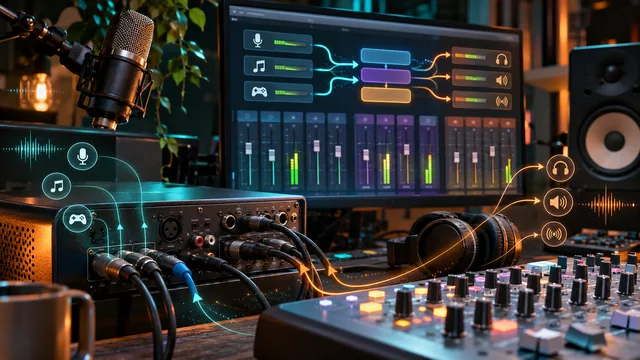
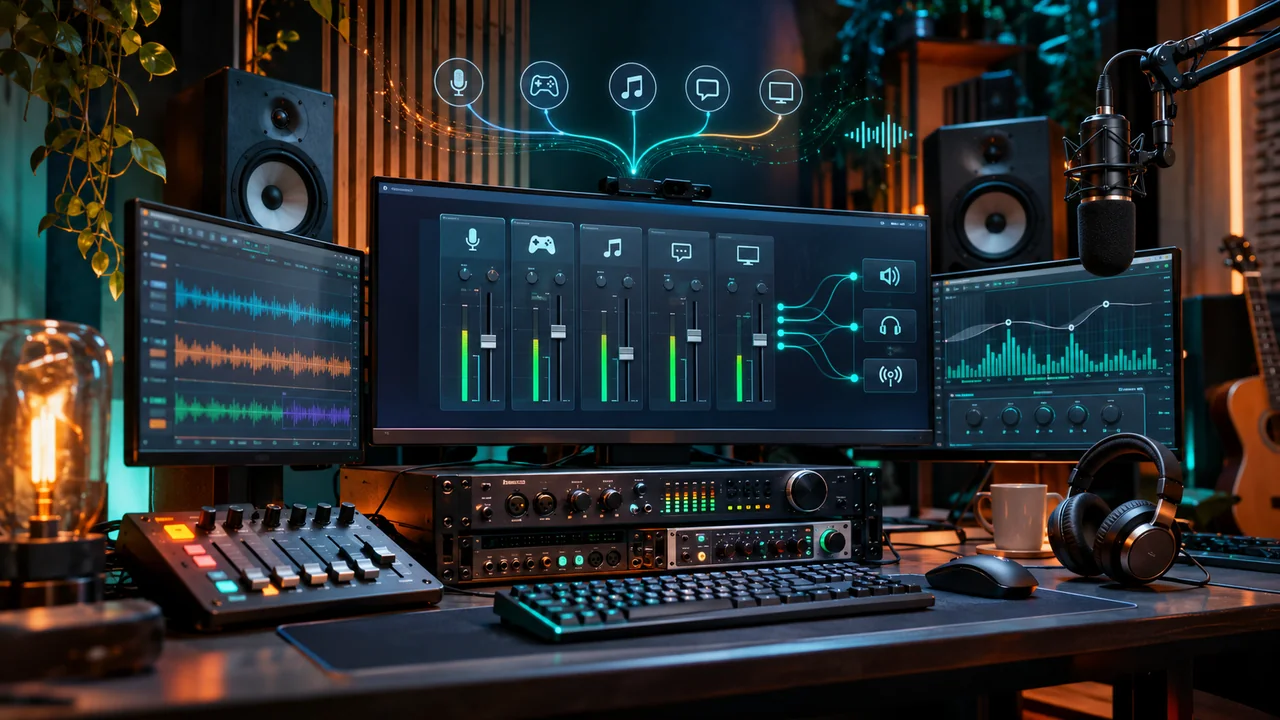
Five hardware inputs means you can connect, for example, two microphones, an audio interface, a capture card and a line input at the same time, each on its own strip. Three virtual inputs let you separate three groups of apps, such as games, voice chat and music. Eight buses give you up to five physical outputs and three separate mixes for apps.
Internal effects: reverb and delay
Potato includes a reverb and a multi tap delay as internal effects. Each strip can send to them at its own level, much like aux sends on a hardware desk. They are useful for live music, stylised voice effects or giving a dry home recording a sense of space.
External AUX through send and return
If you prefer your own processing, Potato can send audio out to an external processor and bring it back, again following the classic send and return workflow.
Advanced voice processing
Recent releases have added substantial voice tools to Potato:
- September 2022: a parametric EQ, a full compressor and gate, and a denoiser for voice processing.
- November 2022: a multiband compressor and a complete strip tool settings dialog, plus a patch insert dialog.
- February to March 2024: a "Voice Modeler" effect on each hardware input strip, integrated with the denoiser knob.
- December 2024: a new denoiser algorithm, released for all Voicemeeter versions.
Together these mean that Potato can handle tasks people often use separate plugins for, such as removing fan noise, controlling dynamics and shaping tone.
Bus sub mix view (September 2026)
The September 2026 release added an option for Potato's bus buttons to show the sub mix level per layer, with a right click switching between level and assignment views. It also brought the new limiters, the Windows Audio Map and other improvements shared with all editions. See our update overview.
How Potato licensing works
Potato is distributed as donationware with an activation code. In practice:
- You download and install Potato from the official page like the other editions.
- You choose a license price level on the VB-Audio webshop (opens in a new tab). The donationware model lets you pick an amount according to your means and use. VB-Audio's site explains that the lowest level can be seen as a renewal price, the default as the recommended price and the highest as generous support.
- You receive an activation code and enter it in Potato.
VB-Audio's December 2025 update introduced new activation codes beginning with "H", which use asymmetric encoding and request a certificate from the webshop server during activation. People who activate offline can copy a certificate from their webshop account. If you bought an older code, check VB-Audio's instructions after updating.
For the full licensing picture, including the separate VAIO extension for Standard and Banana and volume licensing, read Is Voicemeeter free? and VB-Audio's licensing page (opens in a new tab).
Potato may not be redistributed or bundled with other products, according to VB-Audio's licensing terms, though it can be pre installed on PCs. Always get it from VB-Audio.
Download and install
- Open the official Potato page at vb-audio.com/Voicemeeter/potato.htm (opens in a new tab) and download the ZIP package for version 3.1.3.0.
- Extract the ZIP, right click the setup program and choose Run as administrator. On 64 bit Windows, choose the 64 bit setup if offered. VB-Audio has shipped a 64 bit Potato since its November 2019 update.
- Install, then restart Windows.
- Open Voicemeeter Potato from the Start menu and enter your activation code when you have one.
Potato is also listed in the Windows Package Manager catalog as VB-Audio.Voicemeeter.Potato, so winget install --id VB-Audio.Voicemeeter.Potato -e installs it from VB-Audio's download server. Restart after installing either way.
The VB-Audio Potato user manual (opens in a new tab) is worth keeping open. VB-Audio recommends reading the Standard or Banana manual first if you are new to Voicemeeter, since Potato's manual focuses on what it adds.
Planning a Potato setup
Potato's flexibility is wasted without a plan. Sketch your routing before clicking buttons. Here is an example for a streamer with a co host and music:
Inputs
| Strip | Source |
|---|---|
| Hardware 1 | Your microphone |
| Hardware 2 | Co host microphone (second USB mic or interface input) |
| Hardware 3 | Capture card audio (console) |
| Hardware 4 | Instrument or line input |
| Hardware 5 | Spare |
| VOICEMEETER VAIO | Games and system sounds |
| VOICEMEETER AUX | Discord or call app |
| VAIO3 | Music player |
Outputs
| Bus | Destination | Contents |
|---|---|---|
| A1 | Your headphones | Everything except your own mic |
| A2 | Co host headphones | Everything except their mic |
| A3 | Speakers (off while streaming) | Optional |
| B1 | Discord input | Both mics only |
| B2 | OBS main audio | Mics, game, Discord, console, music |
| B3 | OBS recording track | Mics only, for editing later |
With this layout, Discord hears only your voices, the stream gets a full mix, and a separate voice only track is recorded for clean edits. Banana cannot do all of this at once; Potato can.
Tips for working with Potato
- Label everything. Right click strip and bus labels to rename them. With sixteen channels, names matter.
- Use the sub mix view. The September 2026 sub mix display on bus buttons helps you see at a glance which strips feed which bus.
- Watch levels on effects sends. Reverb and delay added to a voice going to Discord can make you hard to understand. Often you want effects only on the stream bus.
- Keep ASIO for your interface. If you have an audio interface with an ASIO driver, Potato can use it for A1 and as an input for low latency and stable timing.
- Save often. Complex setups take time to rebuild. Use Menu, Save Settings after every major change and keep dated copies.
- Use Macro Buttons. Scene changes such as "mute co host" or "switch music to stream only" are ideal for the Macro Buttons app.
Is Potato heavier on CPU?
VB-Audio does not publish separate requirements per edition, and describes its engine as designed for very low CPU use. Potato processes more channels and can run effects, so it does more work than Banana, but stability problems usually come from buffer settings and driver choice rather than the edition. If you hear crackling, follow our crackling fix guide before assuming your PC is too slow.
When Potato is overkill
If you have one mic, one call app and one stream, Banana does the job with a simpler interface and no activation code. Move to Potato when you consistently need more than two separate app mixes, more than three physical outputs, more than three hardware inputs, or built in effects. Our edition comparison can help you decide.
A simpler Potato layout for home use
Not every Potato user runs a broadcast. A common home layout uses Potato mainly for its third virtual path and effects:
| Strip or bus | Use |
|---|---|
| Hardware 1 | Microphone with denoiser and compressor |
| VAIO | Games and system sounds |
| AUX | Discord or meeting app |
| VAIO3 | Music player, so it can be shared or kept private on its own |
| A1 | Headphones |
| B1 | Voice for Discord |
| B2 | Full mix for OBS |
| B3 | Music only, for a separate OBS track you can mute in VODs |
That last bus is useful for creators who play music live but want to remove it from recordings later.
Frequently asked questions
Does the Potato package include Banana?
Yes. Installing Potato also installs Banana and Standard.
Can I try Potato before buying?
You can download and install it. Licensing is through an activation code bought on VB-Audio's webshop at a price level you choose; check VB-Audio's licensing page for current terms.
Is Potato better for a single microphone?
Its denoiser and advanced compressor can help a single mic, but if you do not need more channels, Banana is simpler.
Does Potato support ASIO?
Yes. All Voicemeeter editions support ASIO devices alongside MME, DirectX, KS and WDM.
Summary
Voicemeeter Potato 3.1.3.0 offers five hardware inputs, three virtual inputs, eight buses, internal reverb and delay, send and return effects and the most advanced voice processing in the Voicemeeter family. It is donationware with an activation code bought on VB-Audio's webshop, and its package also installs Banana and Standard. Plan your inputs and buses before you start, label everything, save your settings often and Potato becomes a capable broadcast console on a single Windows PC.