In this guide
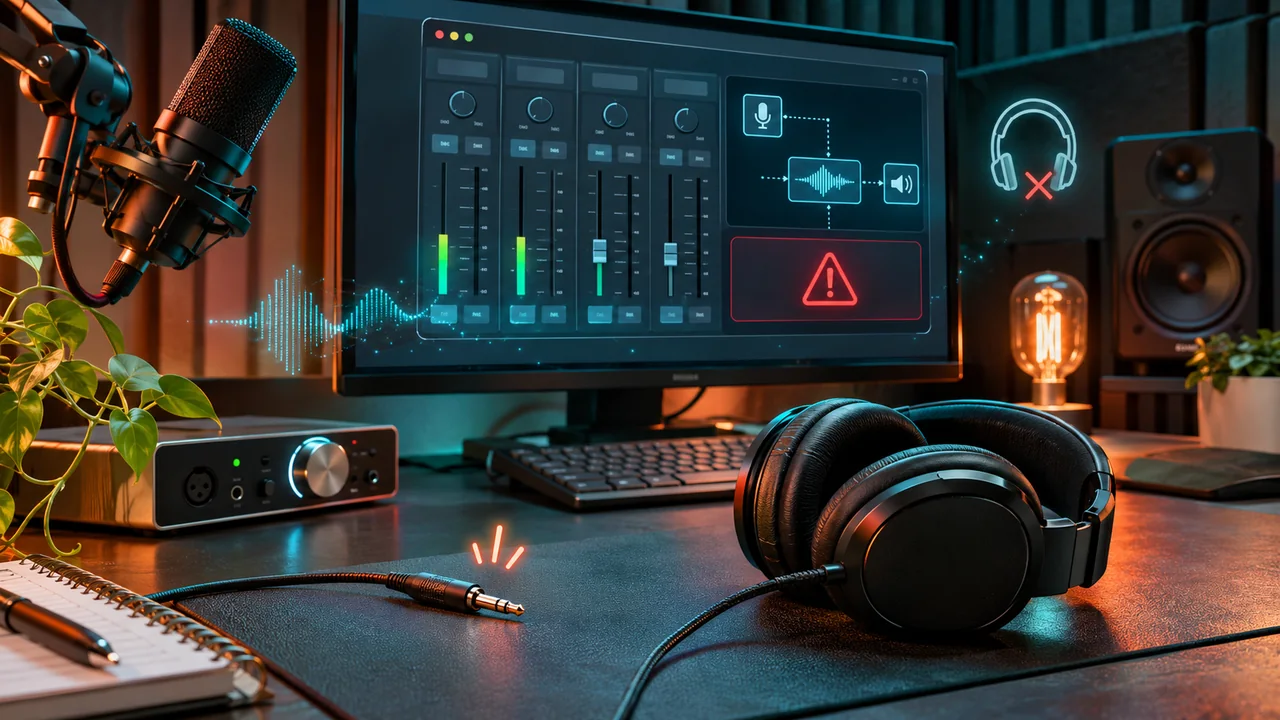
When Voicemeeter stops working, the cause is almost always one of a handful of things: an output that is not set, Windows using the wrong default device, a missing reboot, a sample rate mismatch or another app grabbing a device. The trick is to check them in order instead of changing settings at random.
This guide groups fixes by symptom. Each section starts with the quickest checks. If you have crackling or distorted sound rather than no sound, jump to our dedicated crackling fix guide.
Before anything else: three universal checks
- Is Voicemeeter running? If Windows' default playback device is Voicemeeter Input and the mixer is closed, you hear nothing. Open it, and enable Menu, Run on Windows Startup.
- Is A1 set? Look at the top right hardware out area. A1 must show your real headphones or speakers, not "Voicemeeter" anything.
- Have you restarted since installing or updating? VB-Audio requires a reboot after installation and after uninstallation. Many strange problems disappear after one.
If those are fine, find your symptom below.
No sound at all
Check the meters
Play a video. Watch the VOICEMEETER VAIO strip.
- The strip meter moves but you hear nothing: the problem is between Voicemeeter and your headphones. Check that A1 is lit on that strip, that the A1 bus is not muted in the master section, that its fader is not all the way down, and that A1 is set to the right device.
- The strip meter does not move: sound is not reaching Voicemeeter. Check that Windows' default playback device is Voicemeeter Input, and that the app is not set to output somewhere else (Windows 11: Settings, System, Sound, Volume mixer; Windows 10: App volume and device preferences).
Try another driver for A1
Click A1 and choose the same device under a different driver type. If the WDM version gives silence, try MME. If you use KS, switch to WDM. Some drivers do not cooperate with every mode.
Restart the audio engine
Use Menu, Restart Audio Engine. Voicemeeter reopens all devices. This is the quickest fix after plugging in a headset, waking from sleep or changing Windows sound settings.
Check exclusive mode
If sound worked and then stopped when you opened a game or music app, that app may have taken exclusive control of your headphones. In the classic Sound control panel, open your A1 device's Properties, Advanced and untick Allow applications to take exclusive control of this device. The September 2026 Windows Audio Map (the icon next to VBAN) flags devices opened in exclusive mode, which makes this easier to spot.
Voicemeeter devices are missing in Windows
You open Sound settings and there is no Voicemeeter Input or Voicemeeter Out B1.
- Restart Windows. The drivers register on reboot.
- Reinstall as administrator. Extract the ZIP again, right click setup, Run as administrator, install, then restart.
- Check disabled devices. In the classic Sound control panel, right click in the device list and enable Show Disabled Devices and Show Disconnected Devices. Enable any disabled Voicemeeter device.
- Check Device Manager. Under Sound, video and game controllers, look for VB-Audio devices with a warning icon. If you see errors, uninstall Voicemeeter, restart, reinstall as administrator and restart again.
- Remove conflicting old installs. Copies from unofficial sites or very old versions can leave stale drivers. Follow our clean uninstall guide.
Microphone not working
The mic strip meter does not move
- Is the right device selected? Click the hardware input label and choose your mic. Try the WDM version first, then MME.
- Windows privacy: Settings, Privacy and security, Microphone. Turn on microphone access and Let desktop apps access your microphone. Without this, Voicemeeter receives silence.
- Hardware mute: many headsets and USB mics have a physical mute button or LED.
- Exclusive mode on the mic: another app may hold the mic exclusively. Untick exclusive mode in the mic's properties.
The meter moves but apps do not hear you
- In the app (Discord, Zoom, Teams, OBS), select the Voicemeeter output device as the microphone, typically Voicemeeter Out B1.
- On the mic strip, make sure B1 is lit.
- In the master section, make sure the B1 bus is not muted and its fader is near 0 dB.
Your voice cuts in and out
- The gate on the mic strip may be too high. Lower it.
- The app may have its own voice detection or noise suppression fighting Voicemeeter's. See our Discord guide for how to coordinate them.
Sound stops after a while
After sleep or hibernation
Some audio drivers do not resume cleanly. Use Menu, Restart Audio Engine after waking. If it happens daily, consider disabling USB selective suspend for your audio device in Windows power settings.
When a USB device is unplugged or reconnected
Voicemeeter loses a device that disappears. Plug it back into the same USB port and restart the audio engine. VB-Audio's September 2026 update also fixed repeated warning dialogs during continuous engine restart attempts, so update if you see a loop of messages.
During games or video calls
An app taking exclusive control or switching the device format is the usual cause. Disable exclusive mode for your A1 device and microphone, and match sample rates (next section).
After a Windows update
Major updates sometimes reset default devices or reinstall audio drivers. Reapply your defaults in Settings, System, Sound, check A1 in Voicemeeter, and restart the audio engine. If problems persist, reinstall Voicemeeter and load your saved settings.
Sample rate problems
Mismatched sample rates cause a range of symptoms: silence on some devices, pitch or speed changes, crackles and audio that drifts out of sync with video.
- In the classic Sound control panel, open each real device's Properties, Advanced and set 48000 Hz.
- In Voicemeeter, Menu, System Settings / Options, set the preferred main sample rate to 48 kHz.
- In streaming or recording apps such as OBS, set 48 kHz as well.
- Restart the audio engine.
Apps ignore Voicemeeter
- The app has its own device setting. Discord, Zoom, Teams, OBS and most games let you choose an audio device. Set it explicitly to the Voicemeeter device you intend.
- Per app output in Windows. A forgotten choice in the Windows volume mixer can override the default. Reset it to Default or to the Voicemeeter device you want.
- Communication device. Windows has separate "default" and "default communication" devices. Some call apps use the communication device. Set both to Voicemeeter in the classic Sound control panel.
Echo and feedback
- Callers hear themselves: the strip receiving the call app (often AUX) has B1 on. Turn it off.
- You hear yourself: the mic strip has A1 on. Turn it off unless you want monitoring.
- Loud feedback squeal: a loop exists, usually because A1 is set to a Voicemeeter device or an app is recording from and playing to the same Voicemeeter path. Set A1 to real hardware.
When nothing seems to help
- Save your settings (Menu, Save Settings), even if they are broken; you may want parts of them later.
- Reset your routing: load a simple configuration, set only A1 and one input, and test. Then add pieces back one by one.
- Use verbose logging: the September 2026 release added a verbose mode that writes a log file to C:\Temp to help diagnose unexpected engine restarts or crashes, enabled through a command line switch or registry value described in VB-Audio's release notes.
- Do a clean reinstall: uninstall, restart, install the latest version as administrator, restart.
- Ask the community: the VB-Audio forum (opens in a new tab) is the official place to report bugs, with VB-Audio staff active there.
Quick reference table
| Symptom | First thing to check |
|---|---|
| No sound at all | Voicemeeter running, A1 set, A1 lit on the strip |
| Meters dead | Windows default playback is Voicemeeter Input |
| No Voicemeeter devices | Reboot, reinstall as administrator |
| Mic meter dead | Windows microphone privacy for desktop apps |
| App does not hear mic | App input is Voicemeeter Out B1, B1 lit on mic strip |
| Stops during games | Exclusive mode on A1 device |
| Stops after sleep | Menu, Restart Audio Engine |
| Callers hear echo | B1 off on the call app's strip |
| Crackling | See the crackling fix guide |
Frequently asked questions
Why does Voicemeeter show no devices?
Restart Windows after installing. If still missing, reinstall as administrator and restart again.
Why does my sound go back to the speakers?
Windows or an app switched default devices, often after an update or plugging in a headset. Reapply defaults.
How do I reset Voicemeeter?
Save your settings, then rebuild a minimal setup with only A1 and one input, or reinstall cleanly.
Where can I report a bug?
On VB-Audio's official forum.
Summary
Most Voicemeeter failures come from a short list of causes. Confirm the mixer is running, A1 is set to real hardware and you have rebooted since installing. Then use the meters to find where sound stops: if strips are silent, look at Windows default devices and per app outputs; if strips move but you hear nothing, look at A1 routing and exclusive mode. Fix microphone issues with Windows privacy settings and correct app input devices, match everything at 48 kHz, restart the audio engine after sleep or device changes, and keep Voicemeeter updated. When all else fails, a clean reinstall and VB-Audio's forum are the next steps.